
🔠 How to set the language of your event page
Setting the right language for your event page ensures your attendees enjoy a familiar and accessible experience from the moment they visit. Many of our event organizers host events in different countries, so we've made it easy to set the language individually for each event page. This ensures that attendees always see buttons, labels, and system messages in the right language for them.
How to
Global level
We don't want you to waste time setting the same preferences again and again. If you usually host events in one language, you can define it globally: all future events will automatically inherit that language. Of course, you can still override it at the event level if you ever need to use a different language for specific events.
Step 1
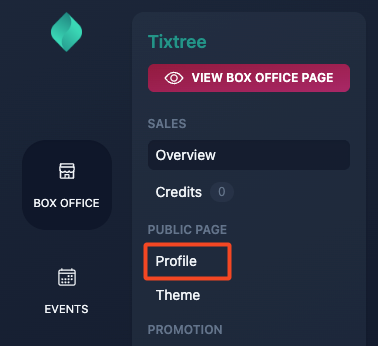
Go to your Box Office overview, then click "Profile" in the sidebar.
Step 2
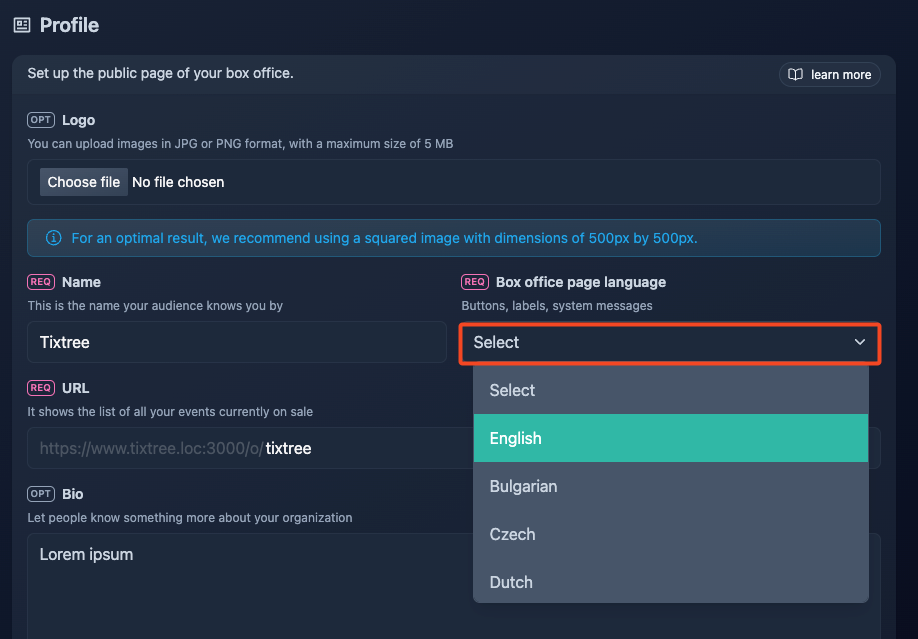
Choose the language, then hit "Save".
Event level
As mentioned above, you can override the language set at the global level if you need to use a different language for specific events.
Step 1
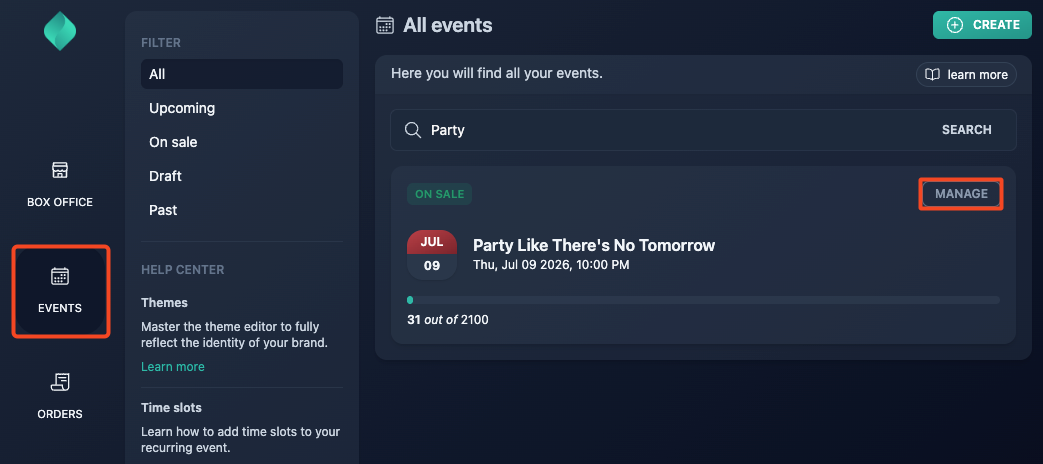
Go to your event overview.
Step 2
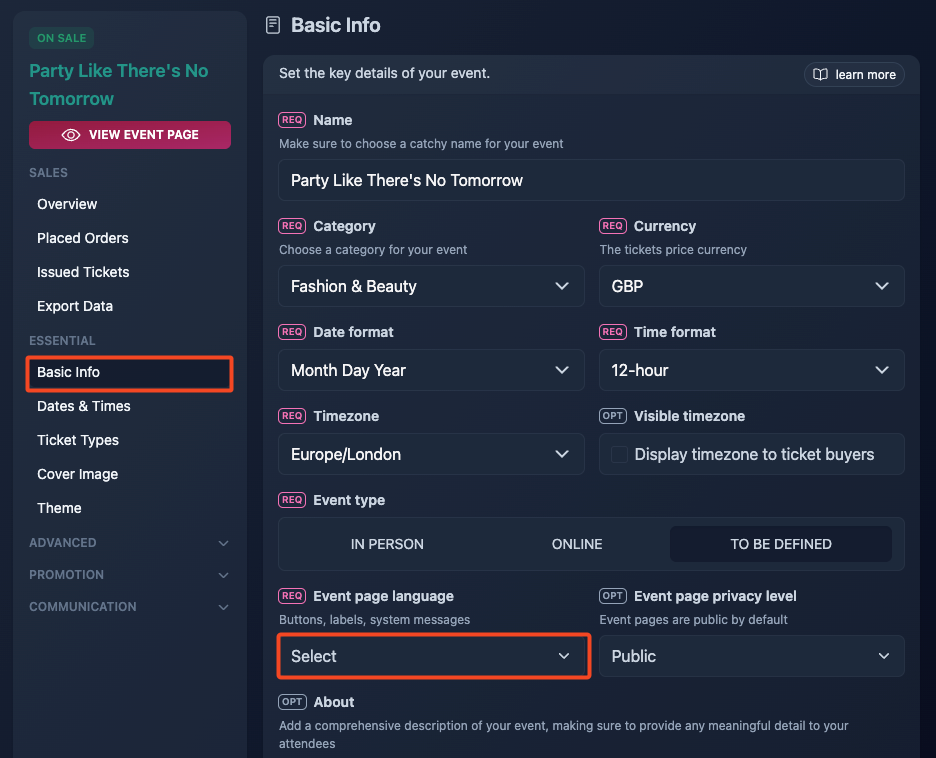
Click "Basic info" in the sidebar, choose the language, then save.
The selected language will determine the language of buttons, labels, issued tickets, and all system messages in the user interface. Custom text, such as ticket type names, descriptions, and email broadcasts, won't be translated automatically.