🎤 How to add a lineup to your event
Your event's lineup is one of the biggest draws for attendees: it's where excitement builds and expectations form.
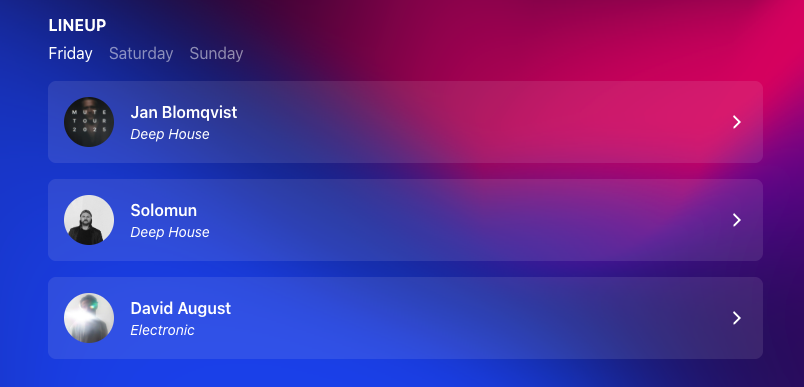
You can add one or more lineups to your event page, giving you the flexibility to showcase your guests whether you're hosting a single-day event with multiple stages or a multi-day experience. It's an intuitive way to organize and present who's appearing, when, and where: all in a format your attendees will find easy to follow.
How to
Step 1
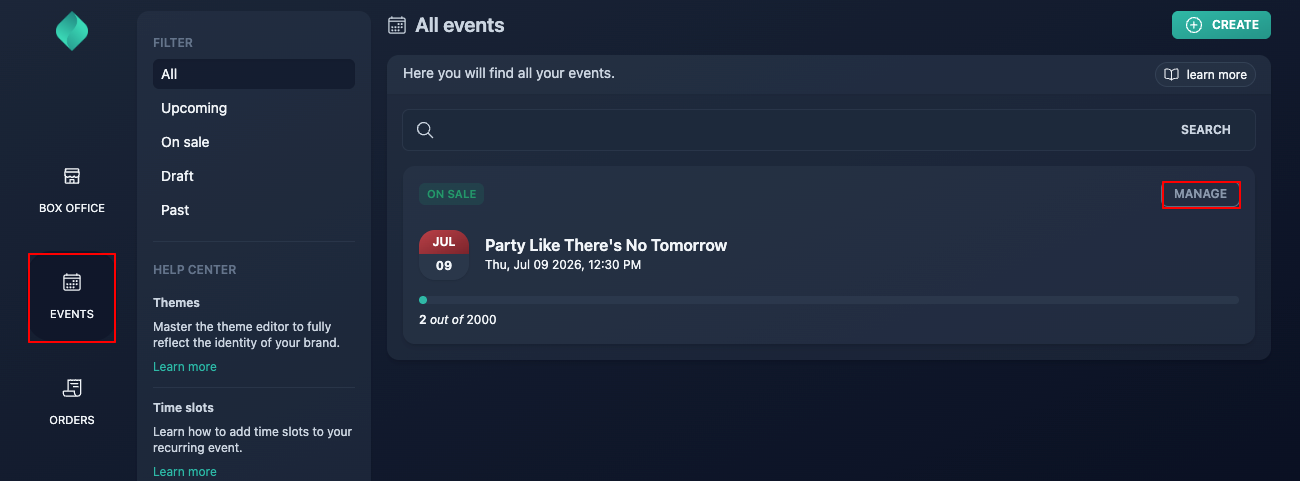
Go to your event overview.
Step 2
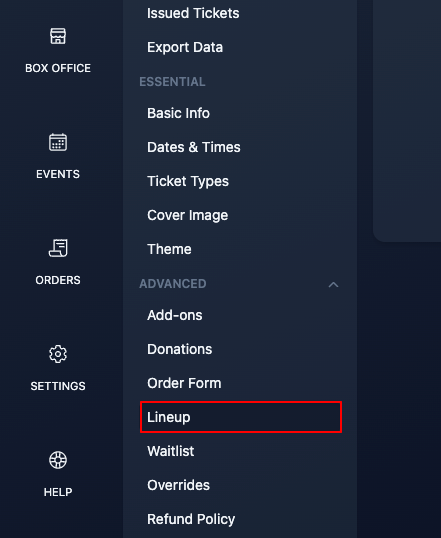
Expand the "advanced" menu, then click "lineup".
Step 3
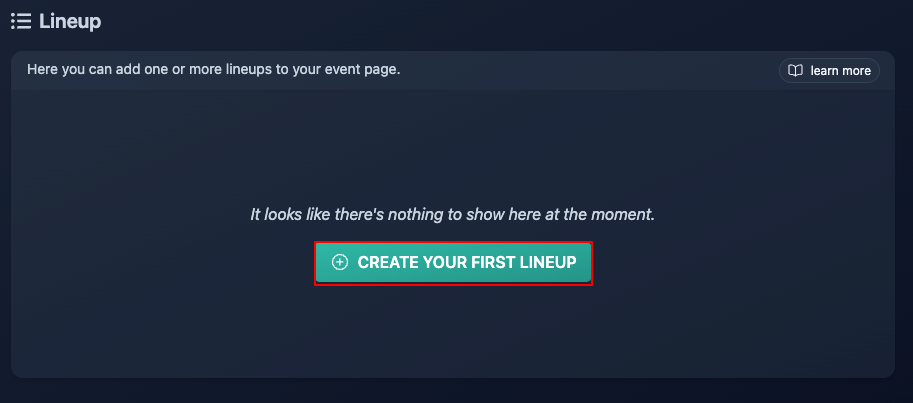
Click "create your first lineup".
Step 4
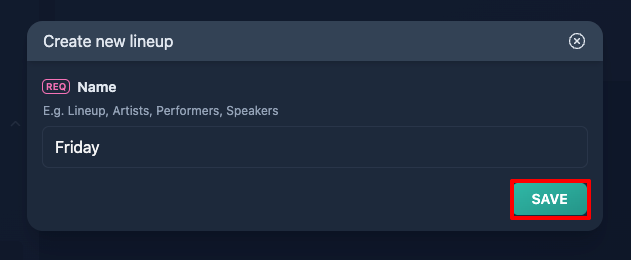
Choose a name for your lineup. While "Lineup" works perfectly fine, you can pick a name that better fits the style of your event, for example, "Artists", "Performers", or "Speakers". Use whatever makes the most sense for your audience.
In this guide, we'll be setting up lineups for a three-day electronic music festival, so we'll simply call them "Friday", "Saturday", and "Sunday".
Step 5
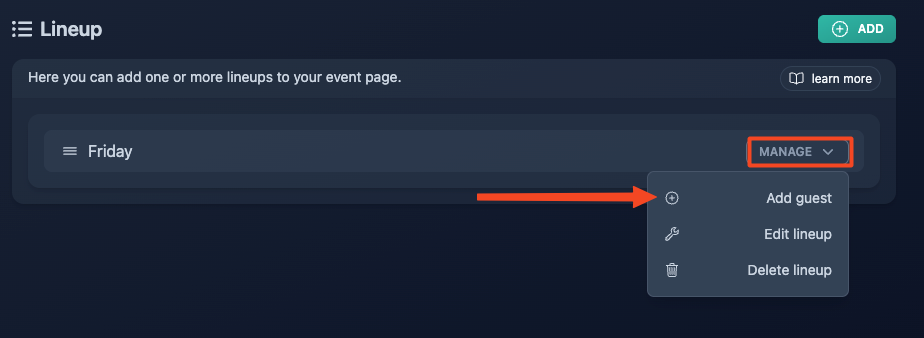
Add your first guest.
Name
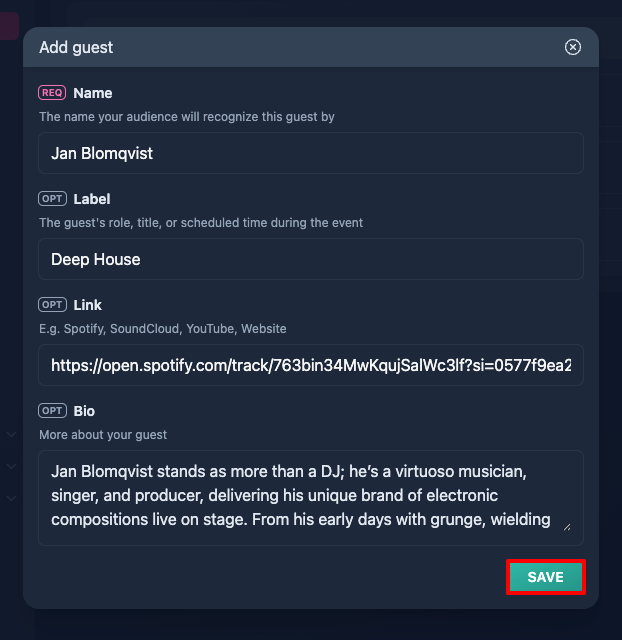
Nothing fancy: just enter your guest's name as you'd like it to appear.
Label
It's a flexible field, feel free to get creative. You can add the guest's title, their role in your event, or the time they're scheduled to appear. This detail will be displayed right below their name on your event page, so make it short and meaningful. In our example, we're entering the artist's main music genre, but the possibilities are endless.
Link
Add a meaningful link related to the guest. It could be their website, a social media profile, or even a track on Spotify, SoundCloud, or YouTube. Bonus: if you use one of those three platforms, we'll automatically embed a player on the page!
Bio
A few words about your guest: who they are, what they do, or anything you'd like to share.
Step 6
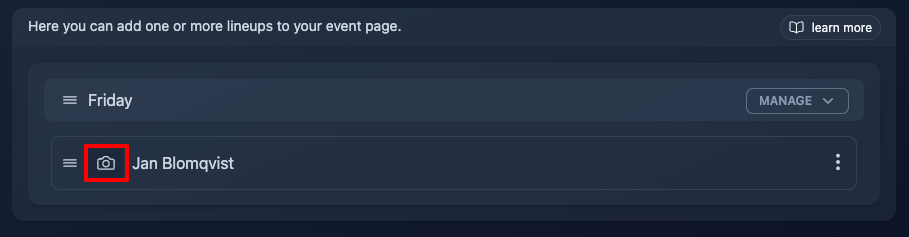
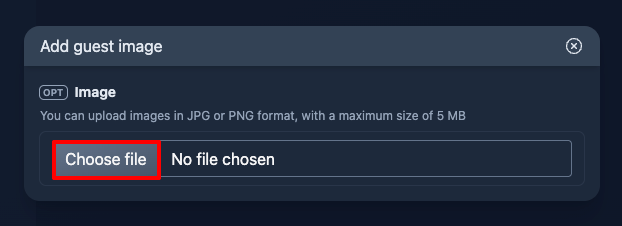
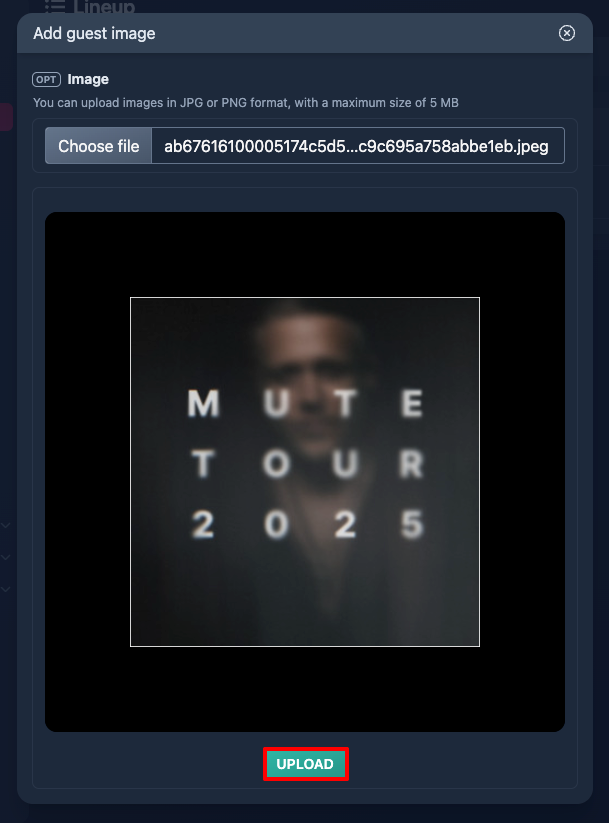
Upload a photo of your guest. A face always makes things feel more personal!
Step 7
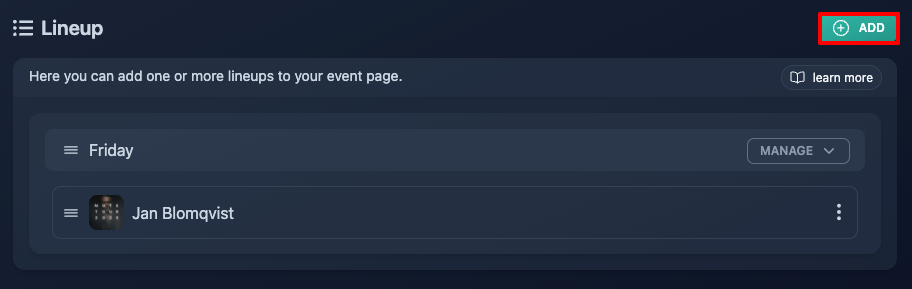
Repeat this process for all your guests, then move on to your next lineup and keep building from there.
Step 8 (optional)
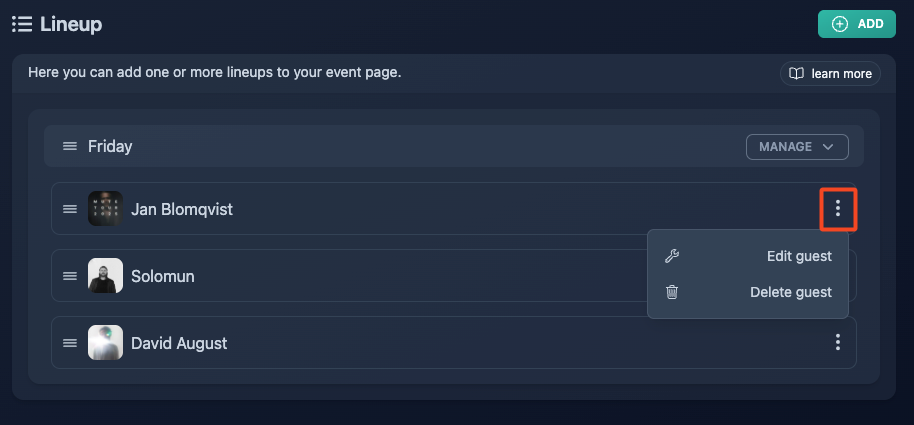
Use the three dots menu if you need to edit or remove the guest at some point.
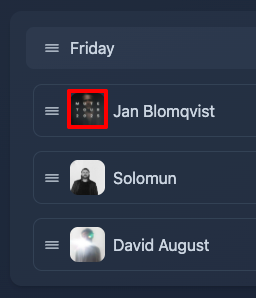
Click on the photo previously uploaded to upload a new one.
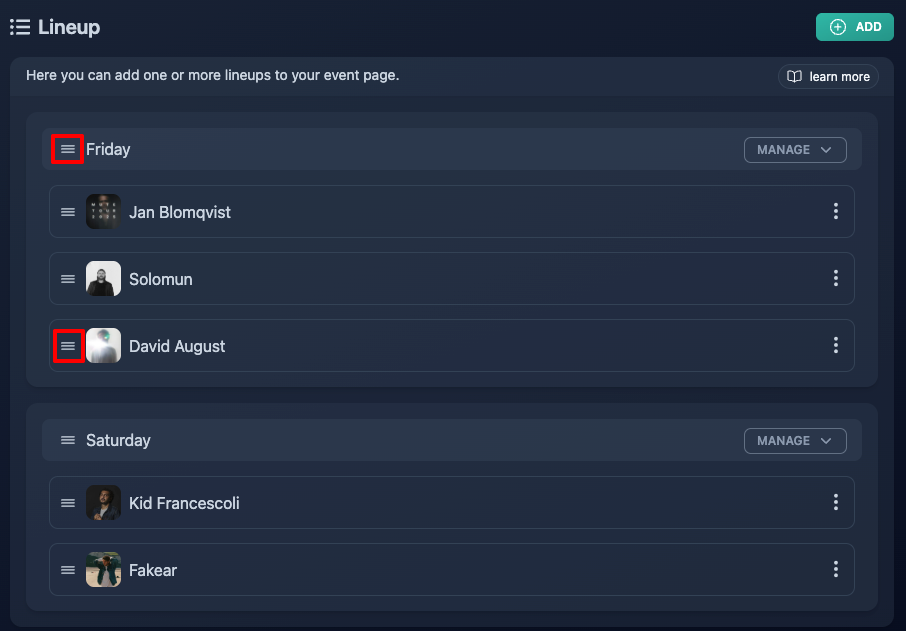
You can also rearrange the order of your lineups or guests at any time: just drag and drop them using the three-line icon.