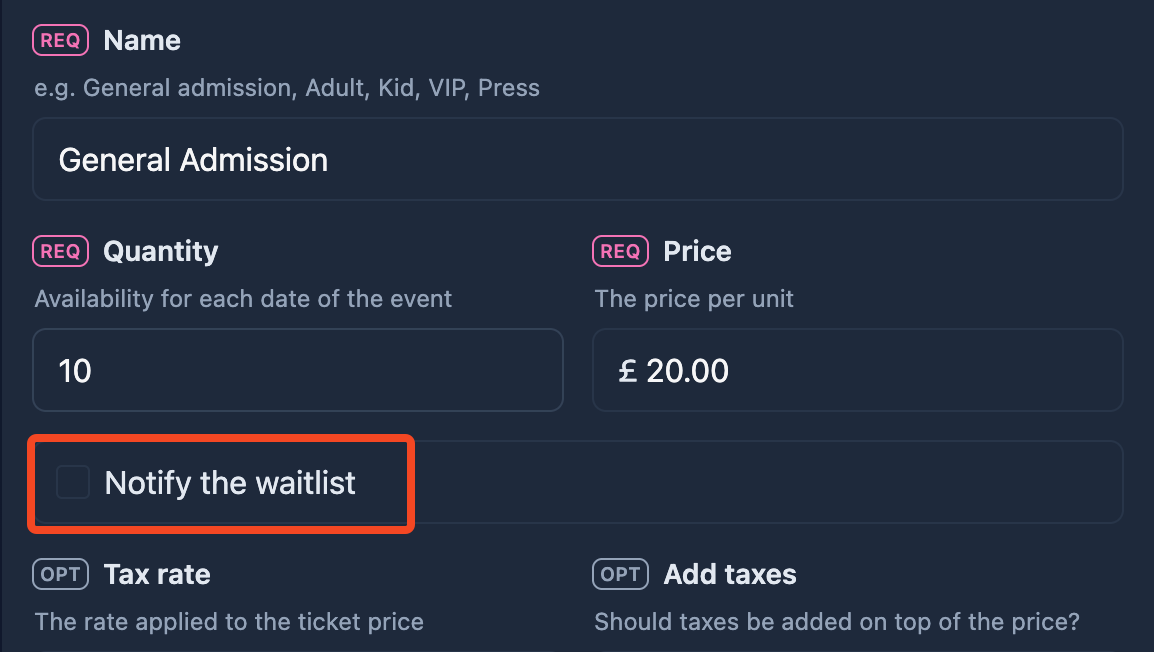
📋 How to enable a waitlist for your event
Even the best-planned events can sell out faster than expected, and that's a great problem to have. A waitlist helps you keep the momentum going by allowing interested attendees to register their spot in line when tickets are gone. It not only ensures you don't miss out on potential guests but also helps you gauge true demand, manage cancellations efficiently, and maximize event attendance.
How to
Step 1
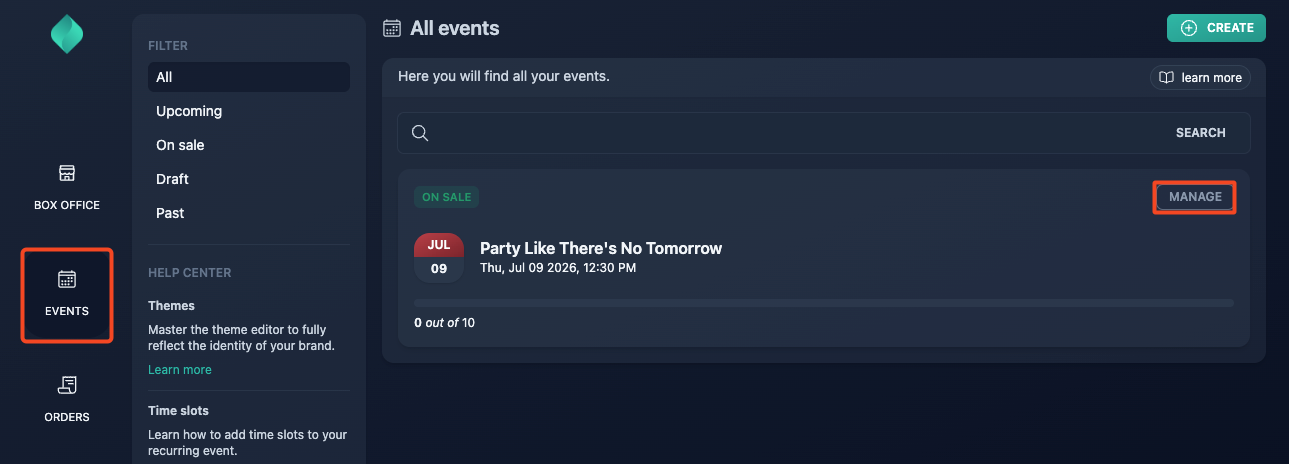
Step 2
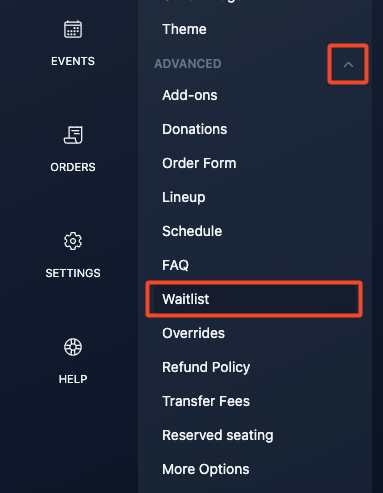
Expand the"Advanced" settings accordion menu, then select "Waitlist".
Step 3
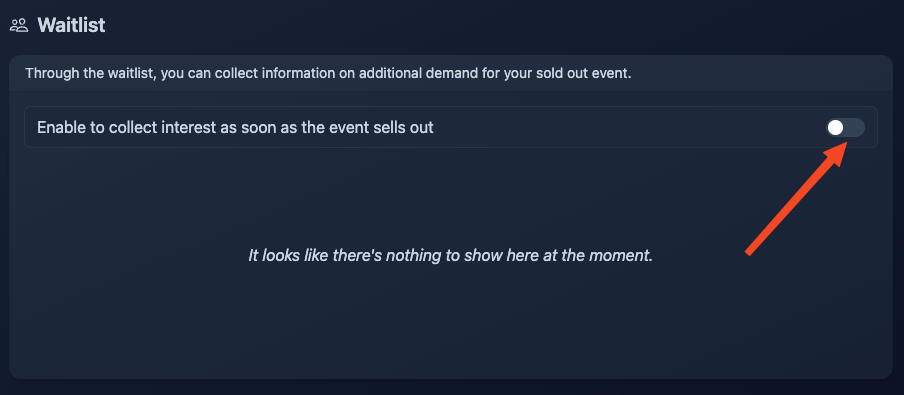
Turn on the switch to enable your waitlist.
Result
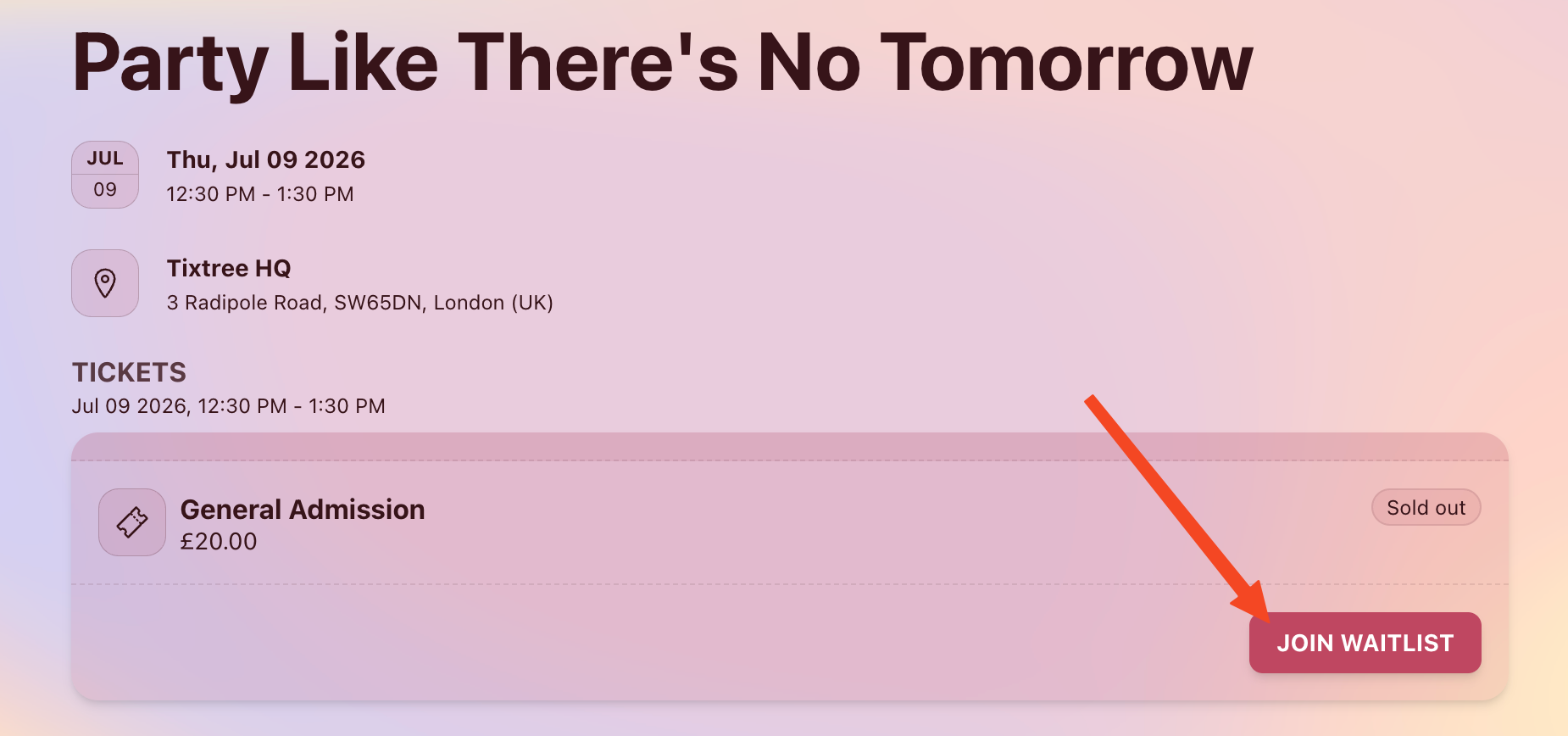
Once your event sells out, customers will be able to join the waitlist.
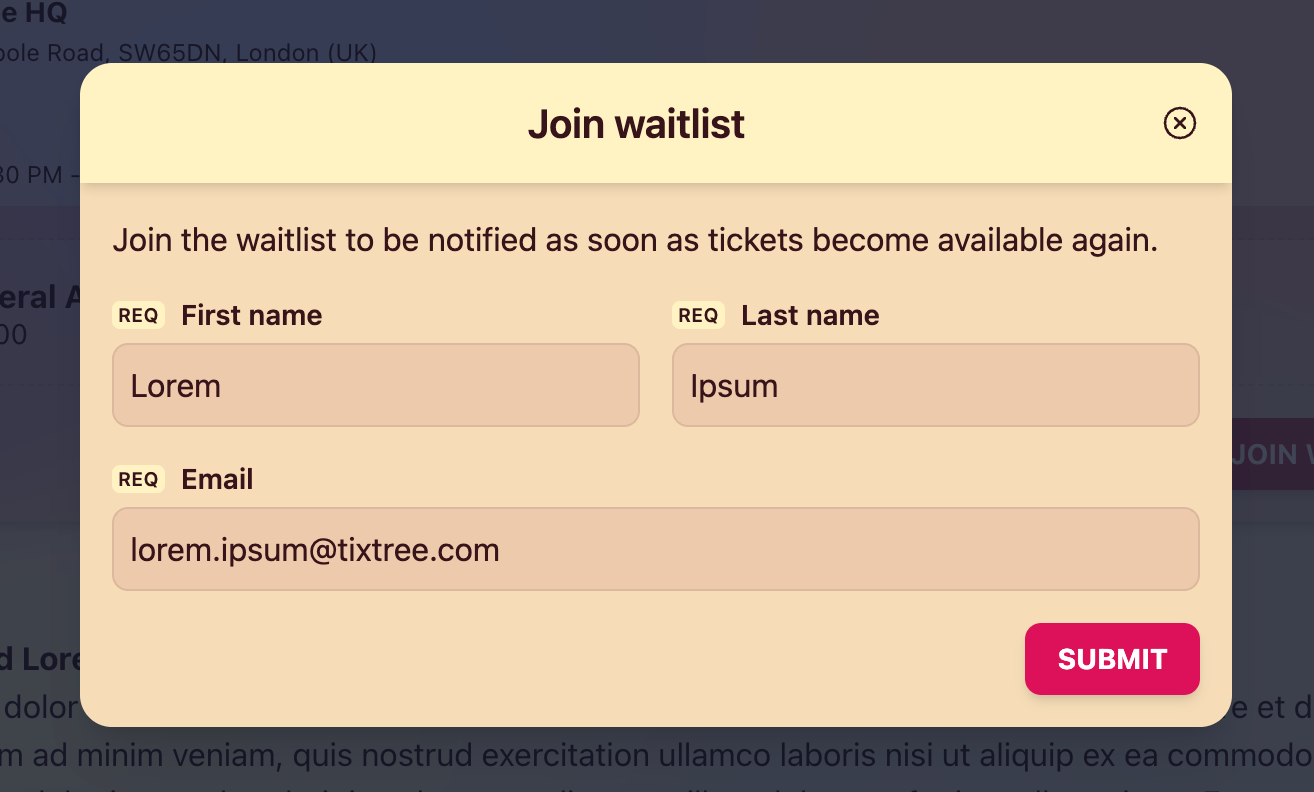
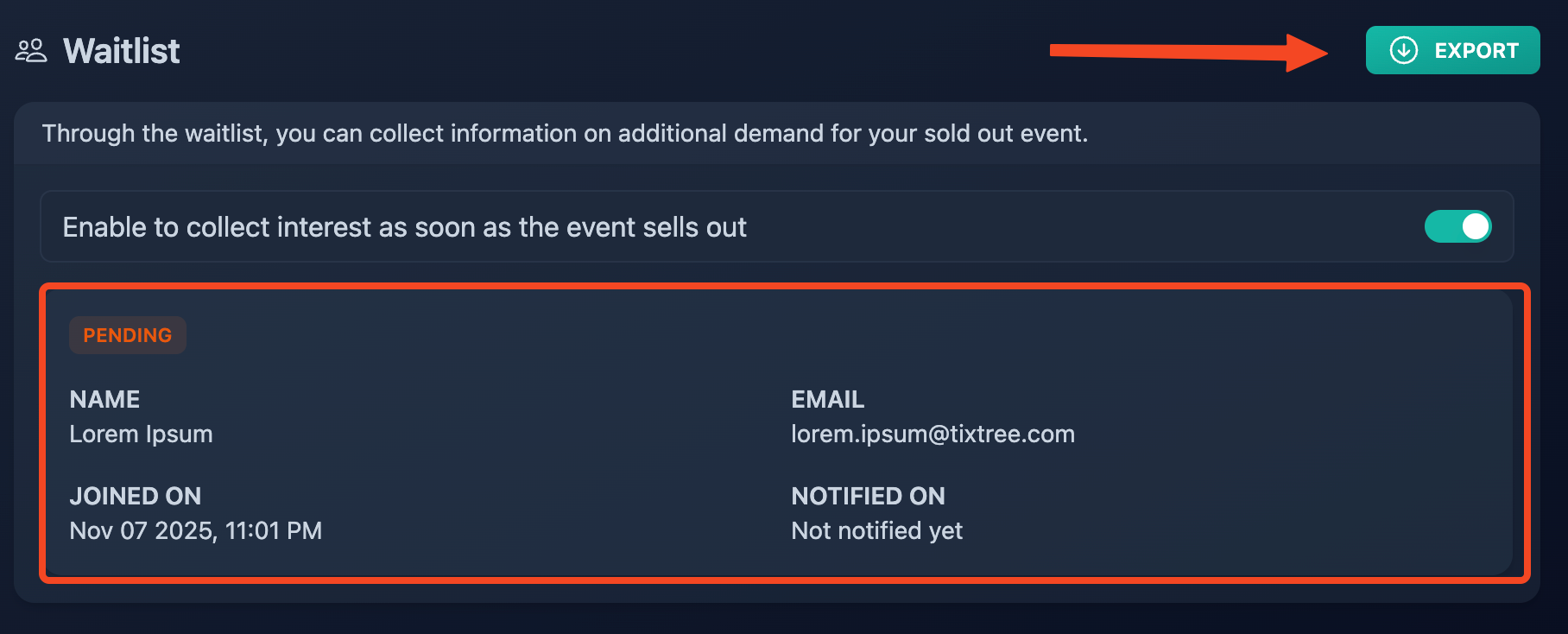
You can view all subscribers on the waitlist page and export them at any time.
Automatic Notifications
Subscribers are automatically notified when:
- An order or ticket is cancelled, either by the attendee or the organizer.
- An order or ticket is refunded.
Manual Notifications
You can also manually notify subscribers when you increase the ticket availability for an event.