🎟️ How to create ticket groups
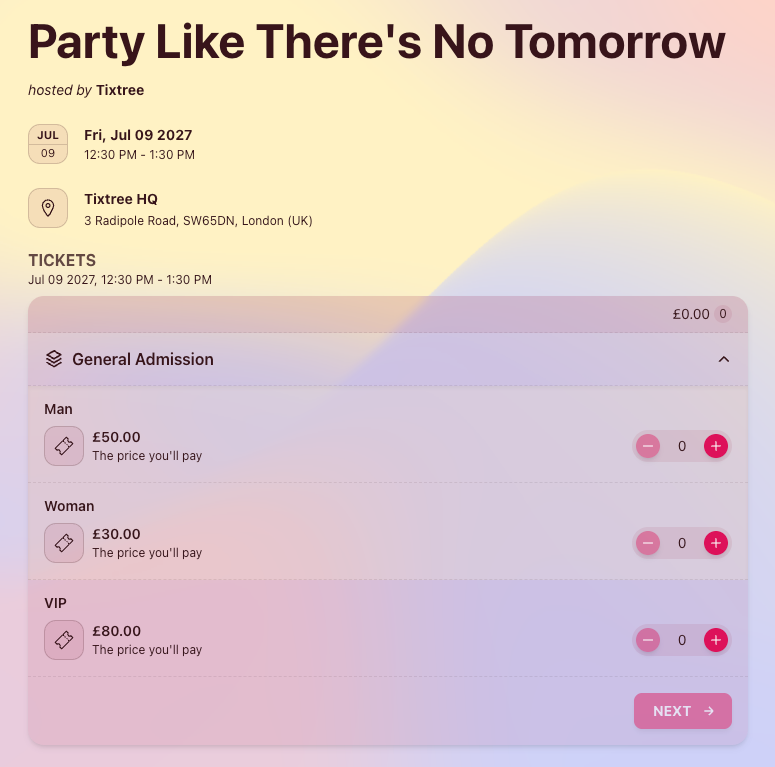
Ticket groups allow you to organize similar ticket types under a single visual group, making the checkout experience clearer and easier to navigate for attendees. Instead of displaying multiple related ticket types separately, you can aggregate them into one group while still keeping their individual configurations and availability.
In addition to improving the presentation of your event page, ticket groups also let you define a maximum number of tickets that can be sold across the entire group. This is useful when multiple ticket types share the same overall capacity, helping you manage inventory more efficiently and avoid overselling.
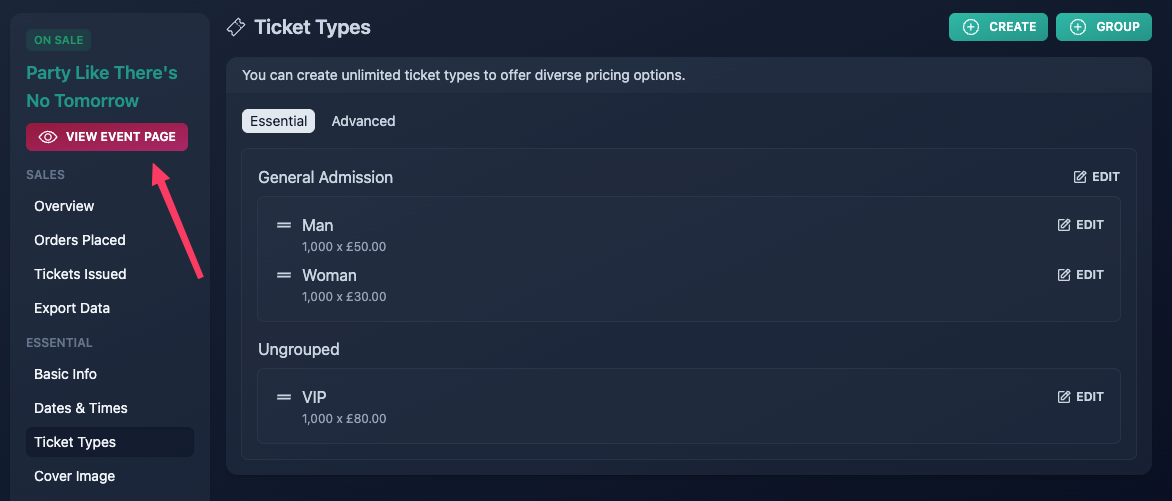
As an example, we'll configure a club event with a max capacity of 2,000 tickets.
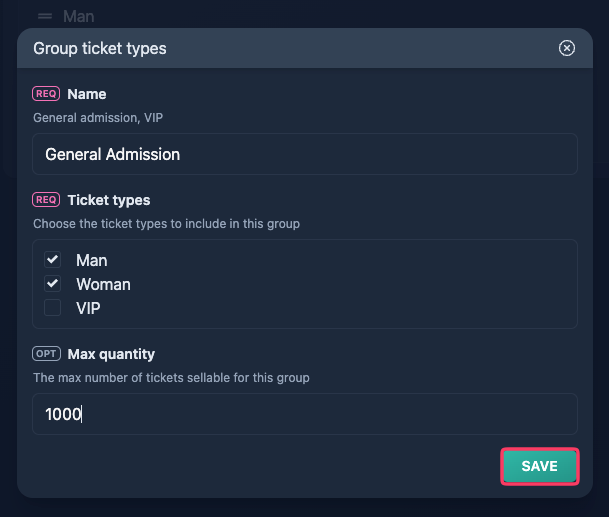
Since we'd like to offer different pricing for men and women, we'll create two separate "General Admission" ticket types: "Man" and "Woman".
We don't need to control how many tickets are sold for each General Admission ticket type, but we do want to ensure that the combined number never exceeds 1,000, so that an additional 1,000 tickets can remain available for the VIP category.
This type of setup would not be possible without Ticket Groups, as they allow multiple ticket types to share the same overall sales limit.
How to
Step 1
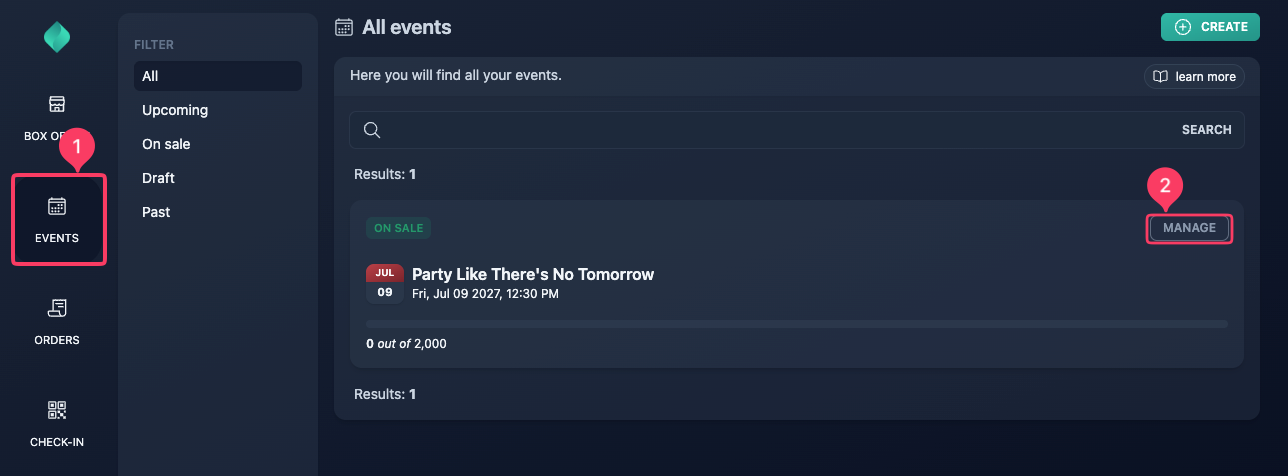
Go to your event overview.
Step 2
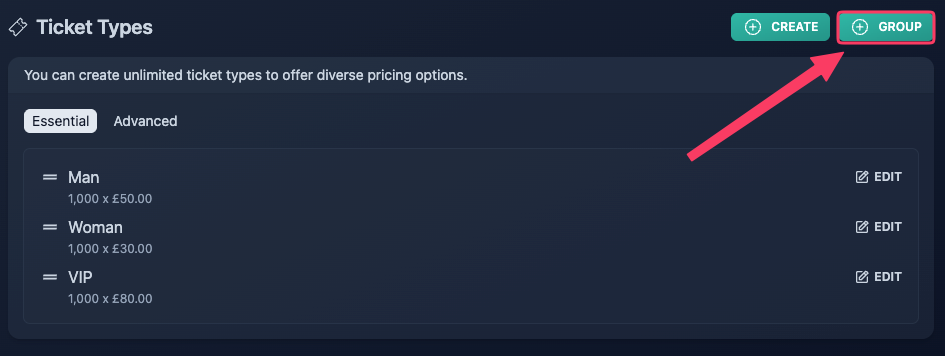
Create the group.
Step 3
Done, you can now preview your event page.