🙋 How to add FAQs to your event
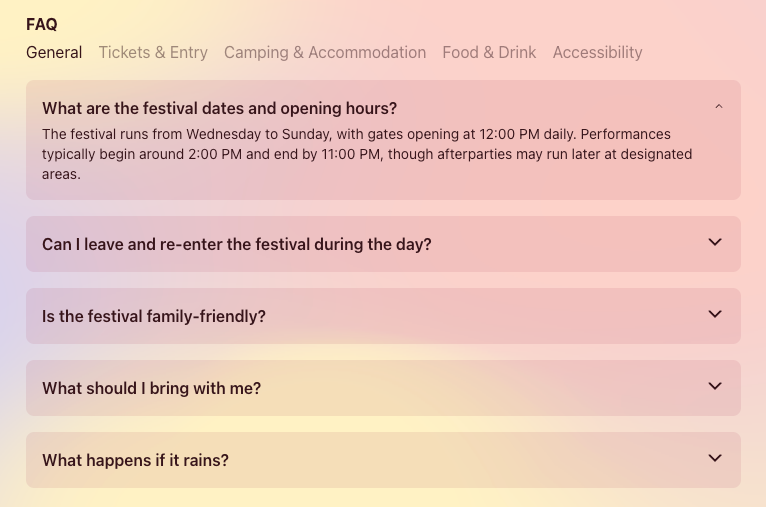
Add helpful FAQs to your event page to answer common questions before they're even asked. Whether it's about tickets, accessibility, or what to bring, FAQs help your attendees feel more confident and prepared. It's a simple and effective way to reduce support requests and build trust; all while giving guests the information they need, right when they need it.
How to
Step 1
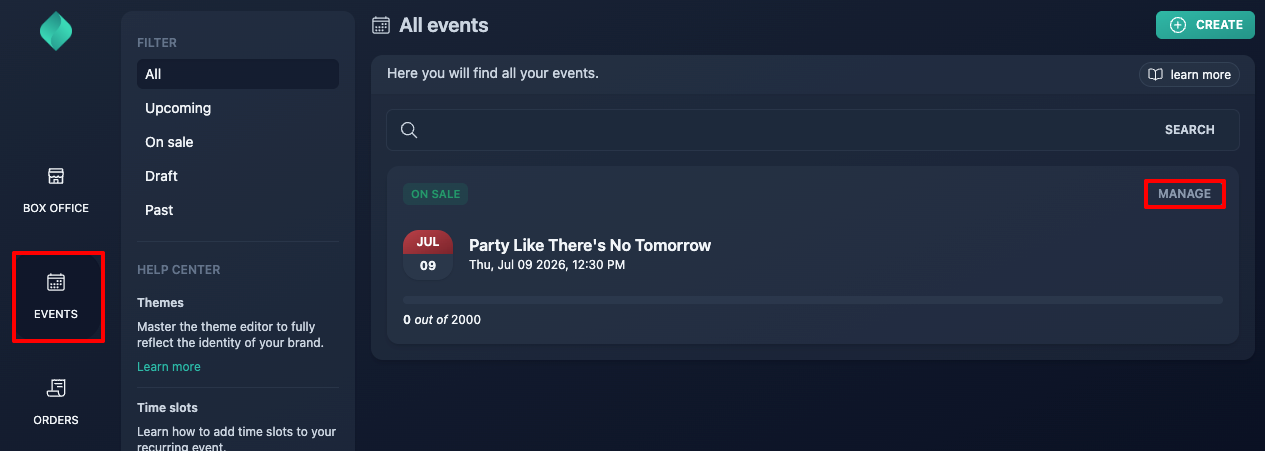
Go to your event overview.
Step 2
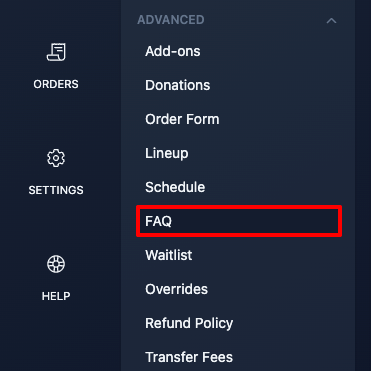
Expand the "advanced" menu, then click "FAQ".
Step 3
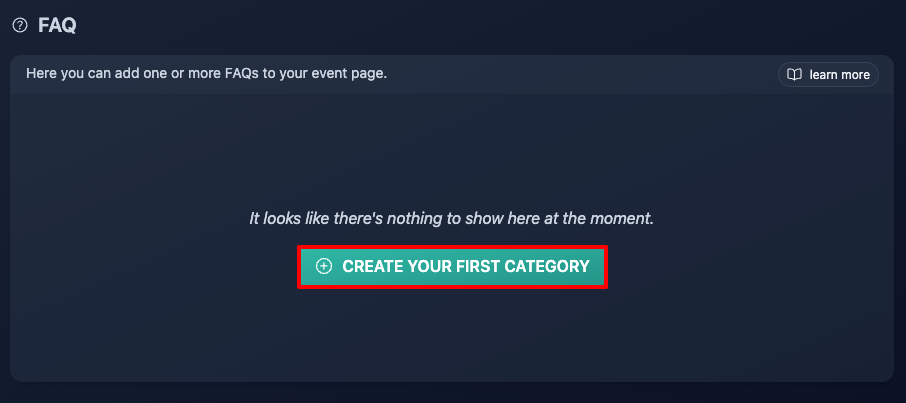
Click "create your first category".
Step 4
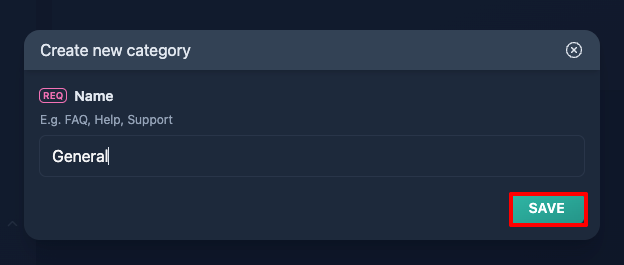
If you're only adding a single block of questions and answers, a simple name like FAQ works perfectly. But for larger events (festivals with multiple themes, days, or audience types) organizing your content into multiple categories will keep things clear and accessible.
In this guide, we're setting up a schedule for a five-day music festival, so using multiple FAQ categories makes sense.
Step 5
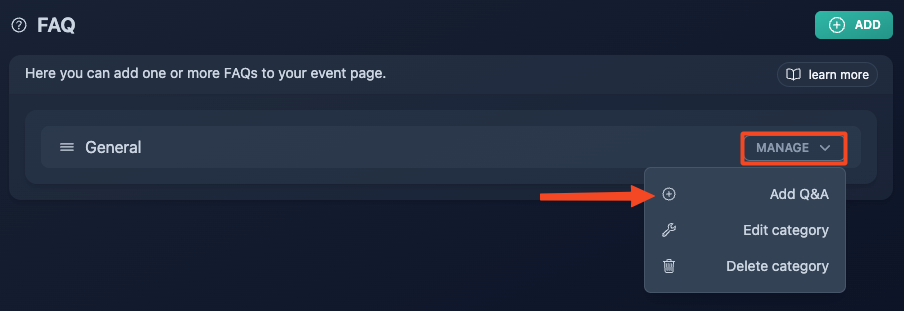
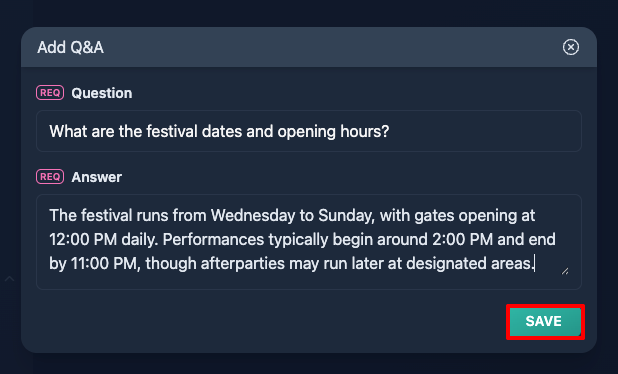
Add your first Q&A.
Step 6
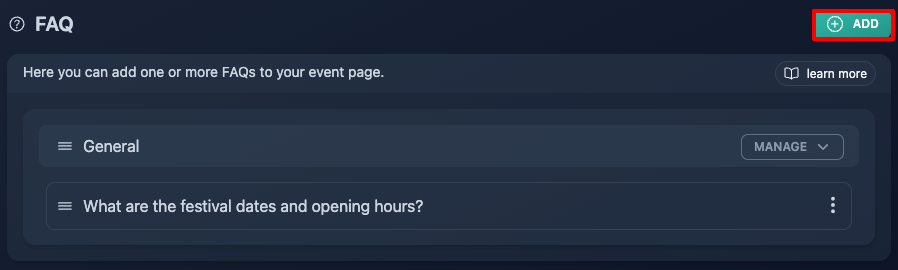
Repeat this process for all your questions, then move on to your next category and keep building from there.
Step 7 (optional)
Use the three dots menu if you need to edit or remove a Q&A at some point.
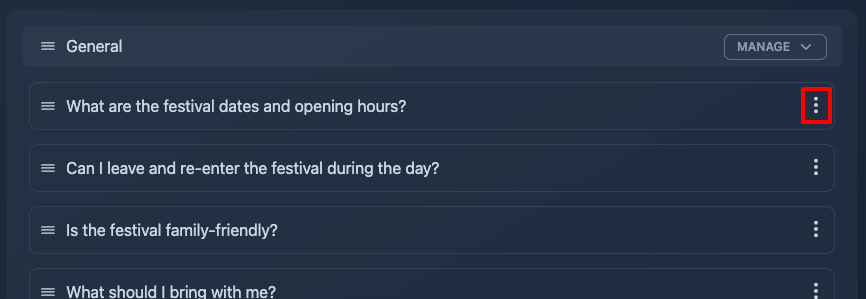
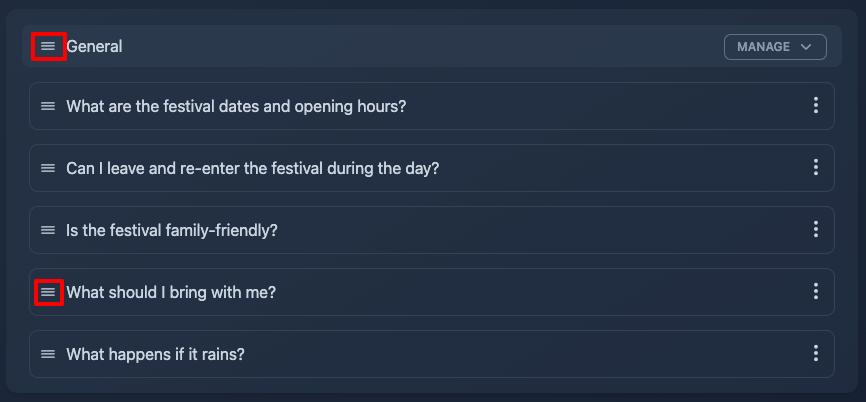
You can also rearrange the order of your categories or Q&A at any time: just drag and drop them using the three-line icon.