
💳 How to enable Apple Pay, Google Pay and other payment methods in your widget
Integrating Apple Pay into your Tixtree widget is a simple way to give ticket buyers a faster, more seamless checkout experience.
Apple Pay is enabled by default on your event page on Tixtree, but if you prefer to embed our widget in your website, you need to make a small adjustment so your domain is authorized to accept Apple Pay transactions. This involves verifying your domain with Stripe, which ensures Apple Pay can securely process payments on your site.
Once your domain is verified, the following payment methods will be available: Apple Pay, Google Pay, Link, Amazon Pay, and Klarna.
How to
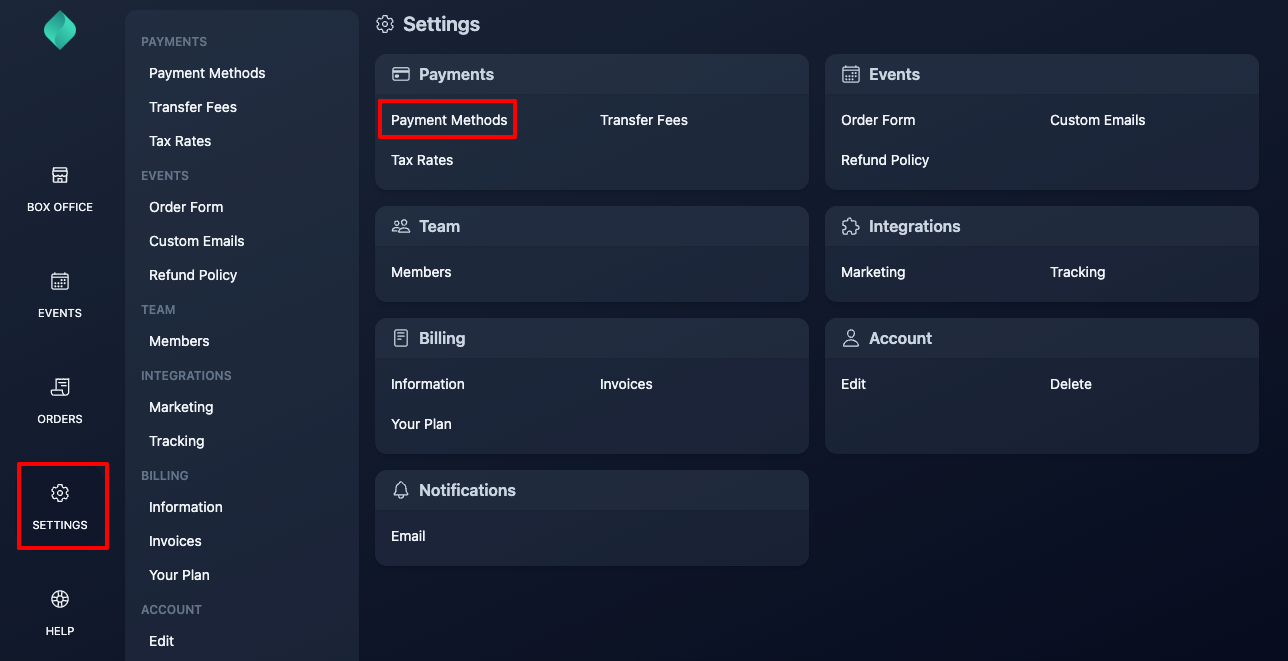
Go to Settings > Payment Methods
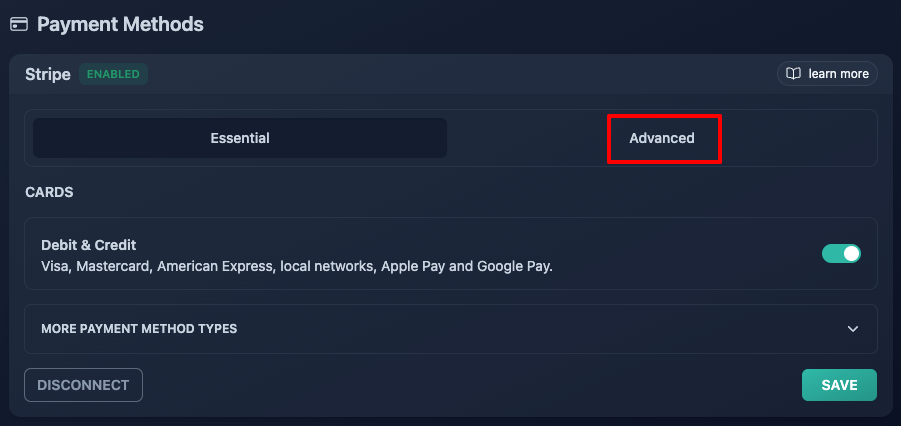
Click Stripe > Advanced
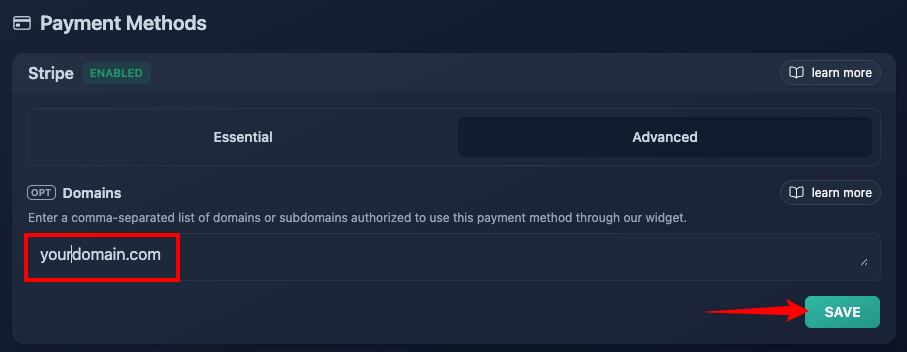
Enter the domain where the widget is embedded, then save
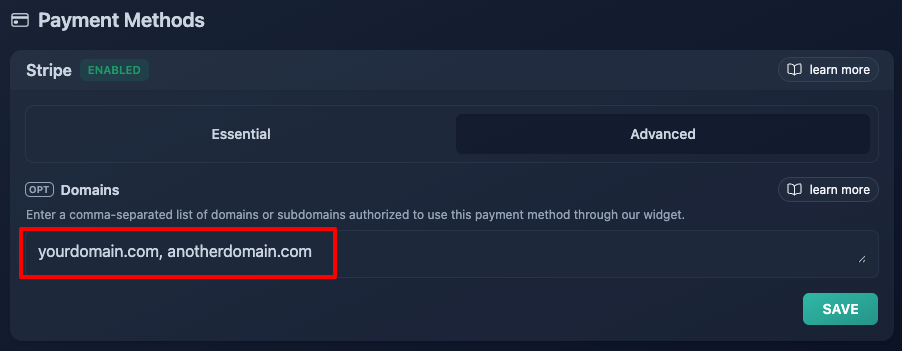
If you host the widget on multiple domains, you'll need to register all of them by entering a comma-separated list of domains
The domain www.tixtree.com is required for Apple Pay to work, and it will be automatically added to your list by default.
If you're embedding the widget on a subdomain (e.g. tickets.yourdomain.com), be sure to verify that subdomain as well.