↩️ How to revert check-ins
Accidentally checked in the wrong ticket? No problem! With Tixtree, reverting check-ins is quick and easy. Whether you need to reactivate a single ticket or reset the check-in list for an entire event, we've got you covered.
How to revert a single ticket
It may happen that an attendee check ins but then decide to leave and return later. Reverting their check-in allows their ticket to remain valid for re-entry, ensuring a smooth experience.
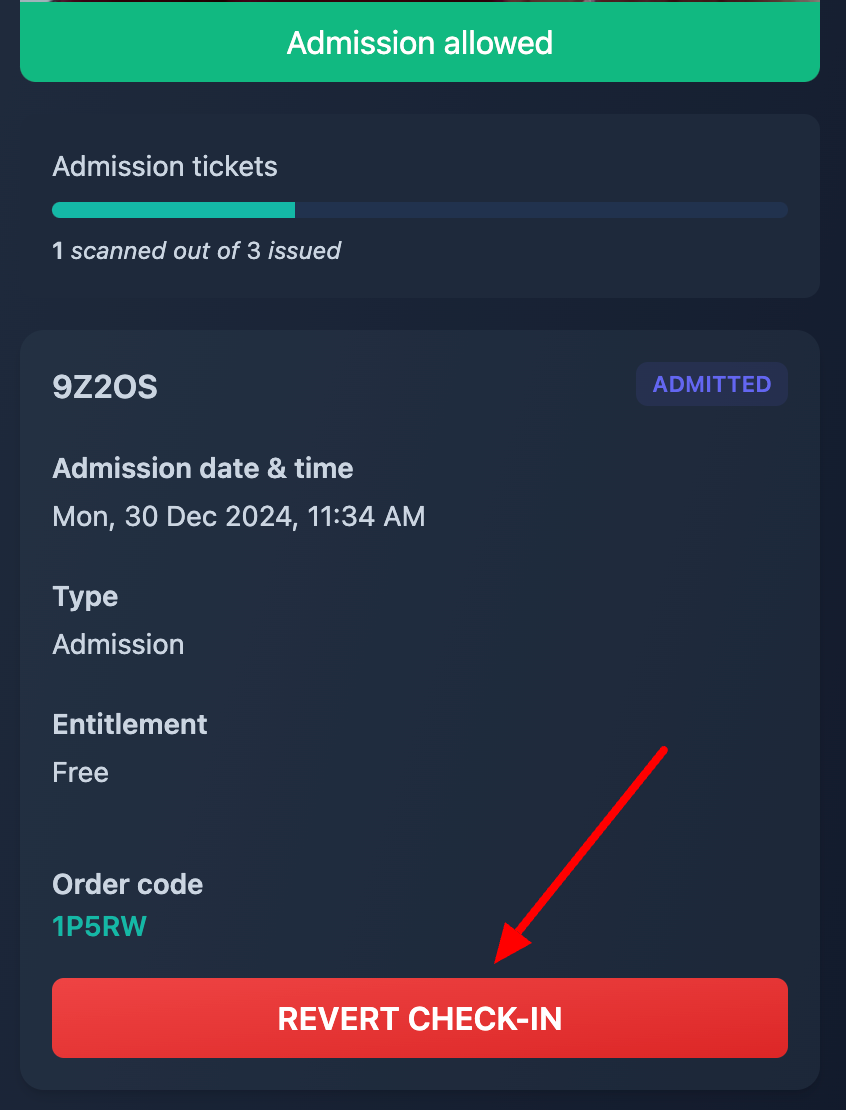
As soon as you scan a ticket, if you need to revert the check-in, you can easily scroll down and hit the relevant button.
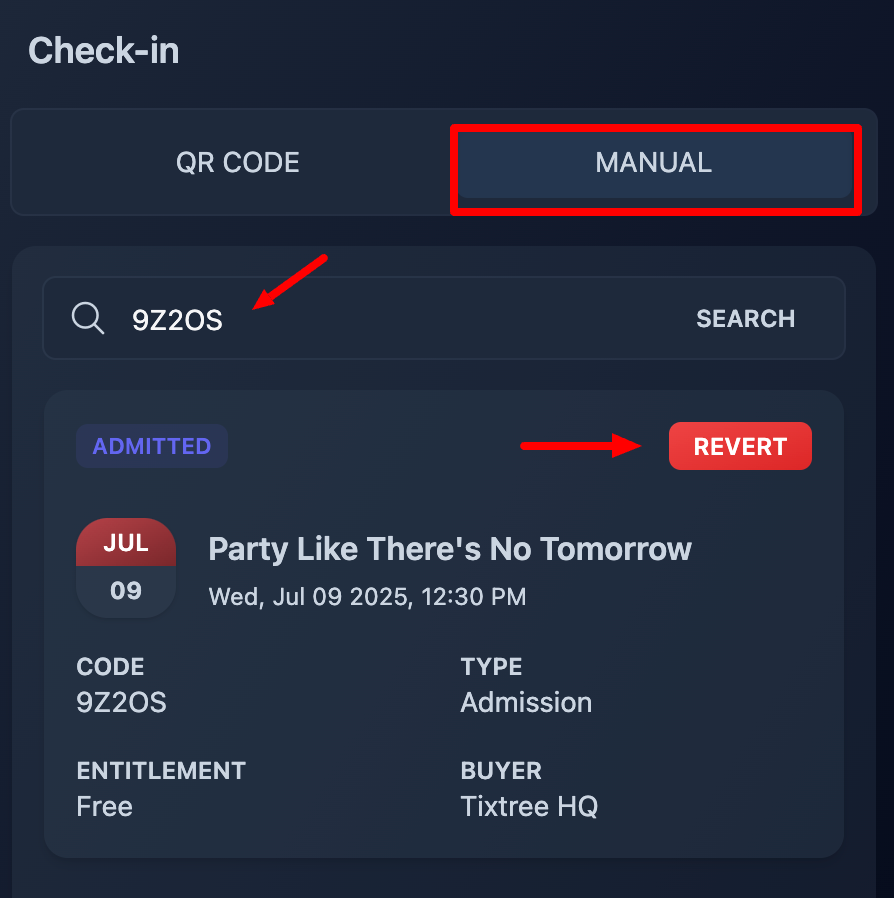
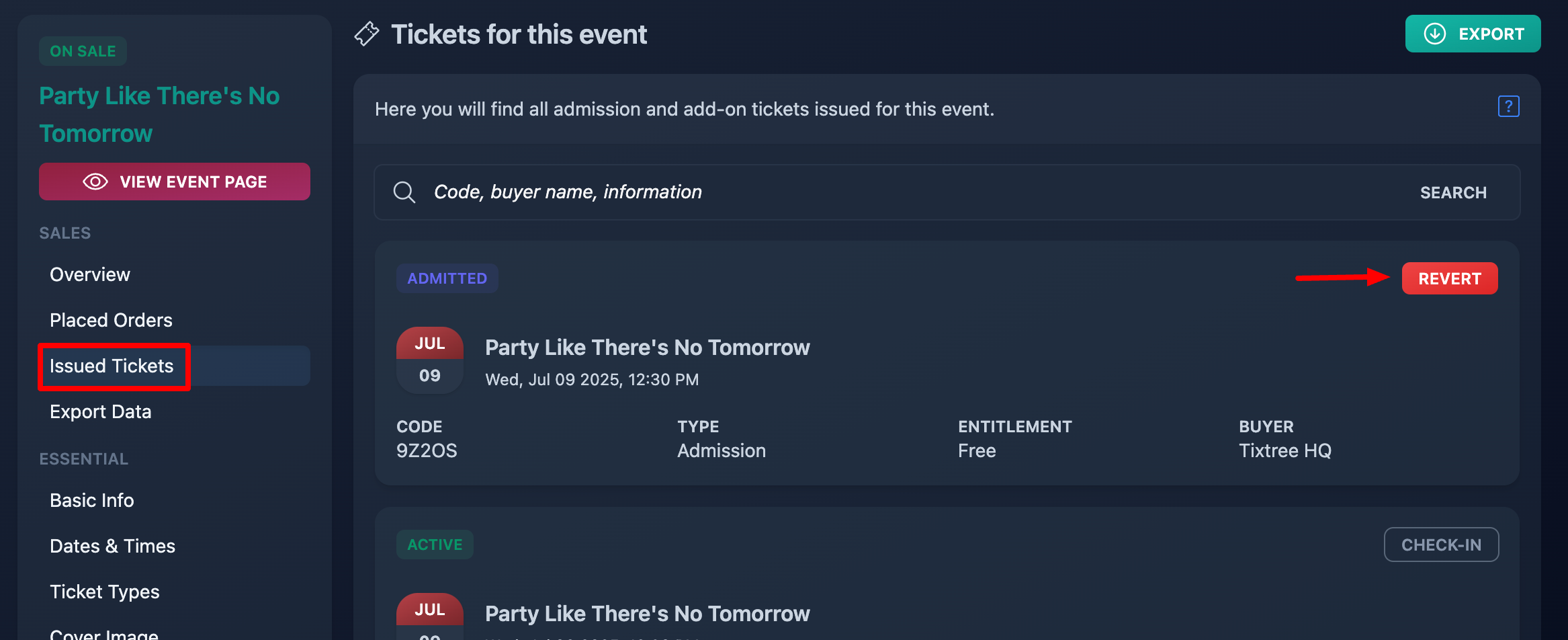
Alternatively, you can manually search the ticket code at any time.
How to revert the check-in list for a specific ticket type
If your tickets serve as passes for a multi-day event, a common scenario might involve reverting all tickets checked in on day 1 to allow re-entry or corrections on day 2.
To achieve that:
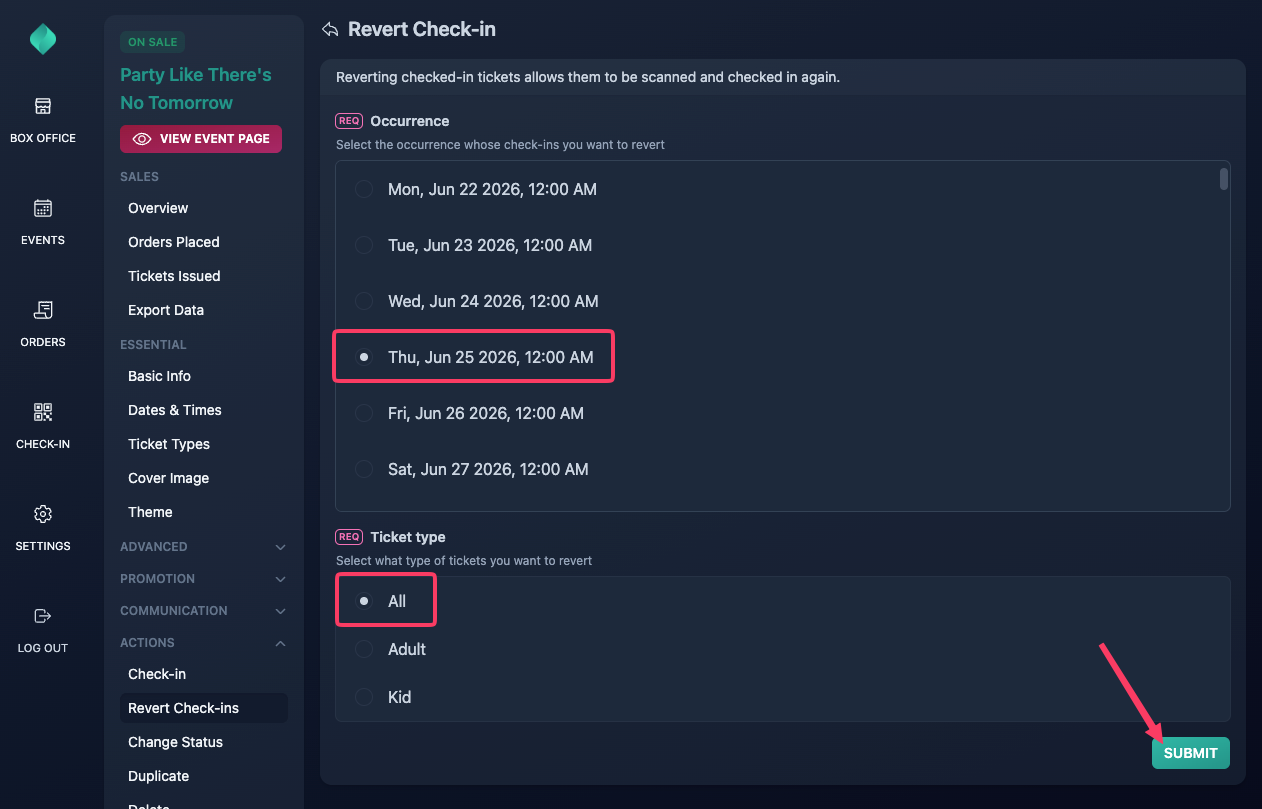
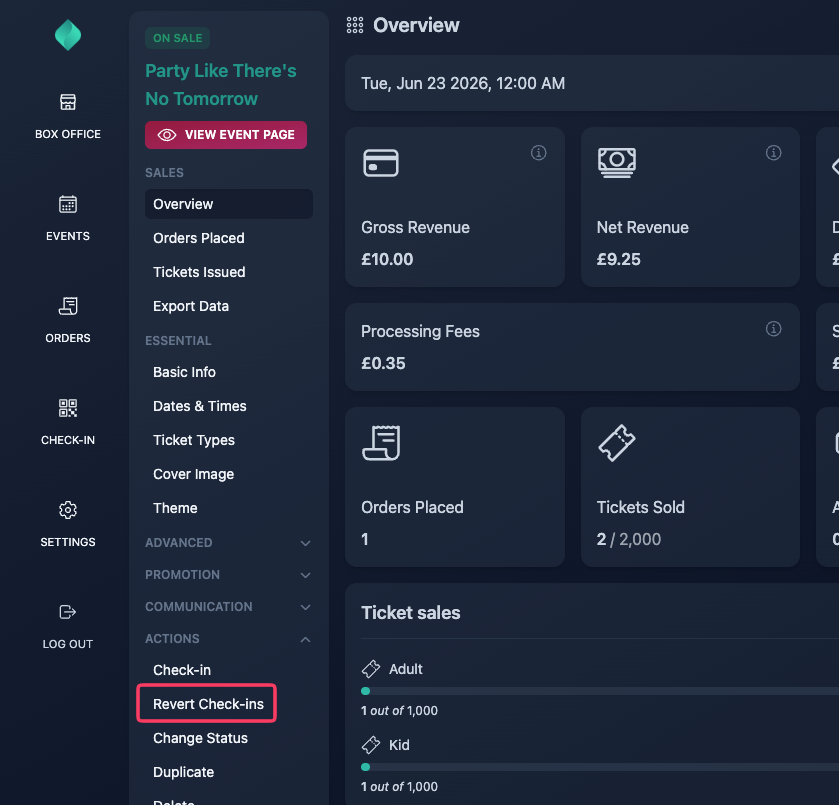
Expand the "Actions" accordion menu, then select "Revert Check-ins"
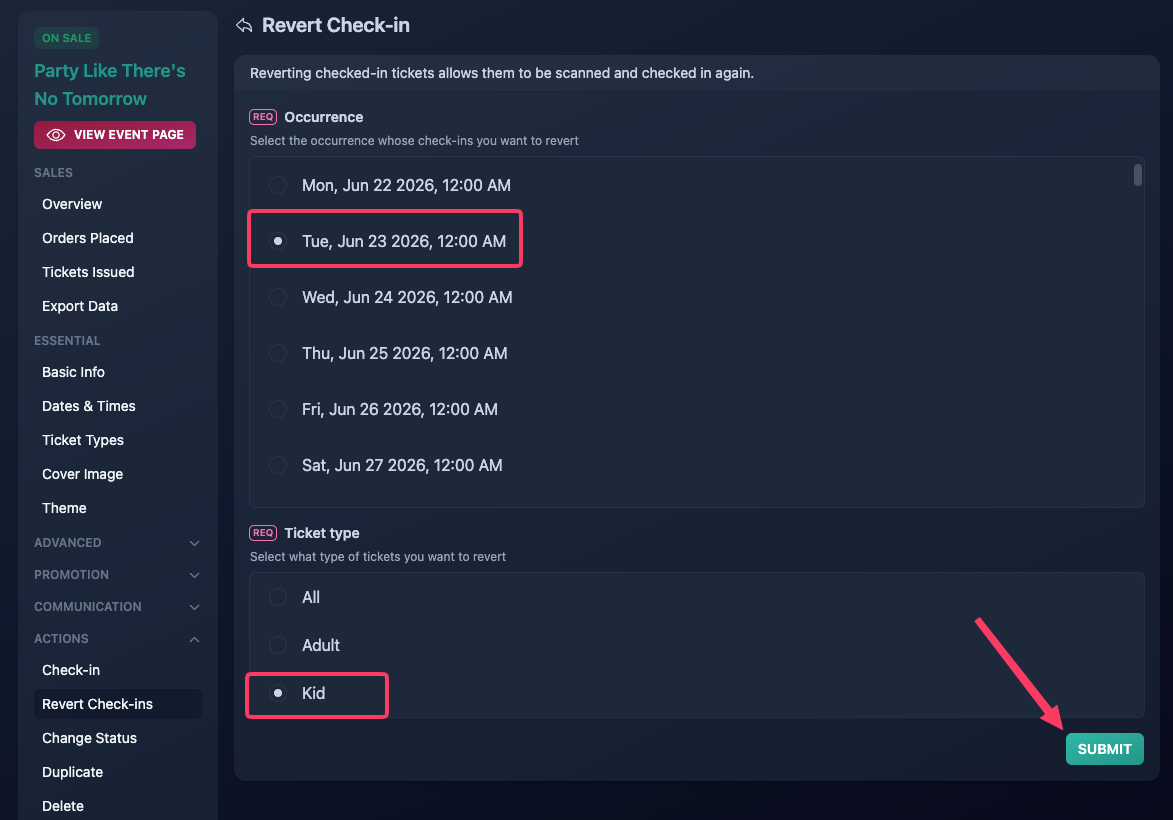
Select the date, than the ticket type, and finally click submit.
How to revert the check-in list for a specific event / occurrence of your event series
Expand the "Actions" accordion menu, then select "Revert Check-ins"
Select the date, than"All" ticket types, and finally click submit.